Local AI Analytic
See what your AI coding agents cost, by day, session and model.
- Platform
- Linux
- Version
- 1.0.0
- Updated
- 6 Nov 2026
- Size
- 277 KB
Download
-
Linux
Download
Source with the web app already built. Needs npm install.
SHA-256 checksum
3ebf09ee1a00466d8aeb945d2ead8b1a0c82b41fde16bdc12ea975cc8f903c22Check the file after downloading with
sha256sum local-ai-analytic-1.0.0.tar.gz.
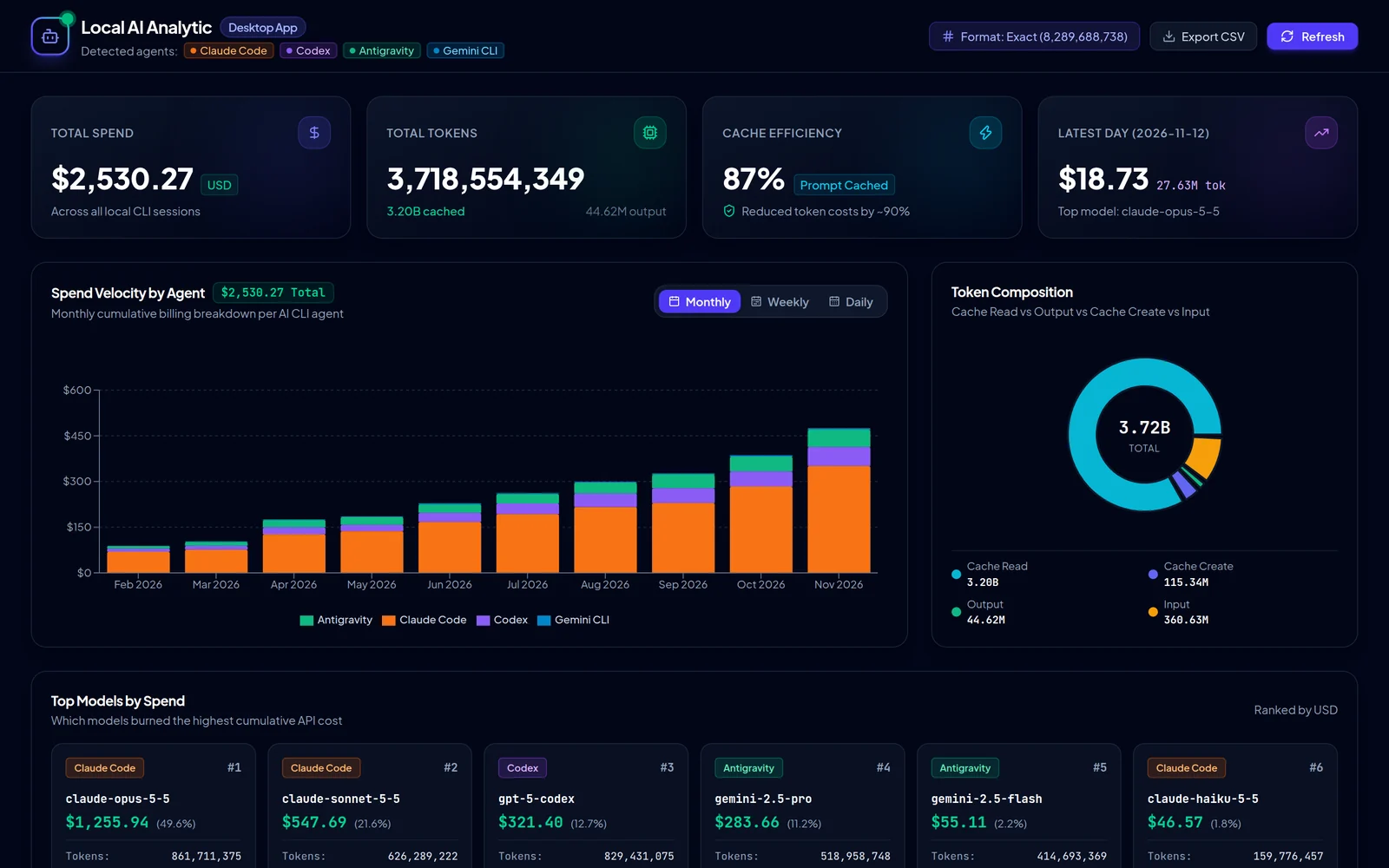
A desktop dashboard for the usage logs that AI coding agents leave on your computer. It reads the history of Claude Code, Codex, Gemini CLI, Antigravity and other agents through the ccusage tool, and shows spend, tokens and cache savings by month, week, day and session.
The five-hour billing view follows the rate-limit windows, with the current one on top. Your usage data is read on your own machine and shown in a window of its own. The app only reads your logs; it does not send them anywhere.
What it does
- Spend and tokens by month, week and day, split by agent and by model
- Every session, with its agent, models, tokens and cost
- Five-hour billing blocks, with the active window highlighted
- Charts of spend per agent over time and of how tokens divide between input, output and cache
- The most expensive models ranked, and the share of spend per agent
- Search, filter by agent, switch between exact and compact numbers, and export to CSV
Install
-
Extract the download and open the folder.
tar xzf local-ai-analytic-1.0.0.tar.gz cd local-ai-analytic-1.0.0 -
Install the dependencies. This downloads Electron, so it takes a while the first time.
npm install -
Start the app.
./start.sh
You need
- Linux with a desktop
- Node.js 20.19, 22.12 or newer, with npm (tested with Node 24)
- Logs from at least one supported agent, or the dashboard will be empty
Good to know
- The dashboard loads its two fonts from Google Fonts when it opens, and ccusage may look up current model prices online. Your logs stay on your machine.
More screenshots
-
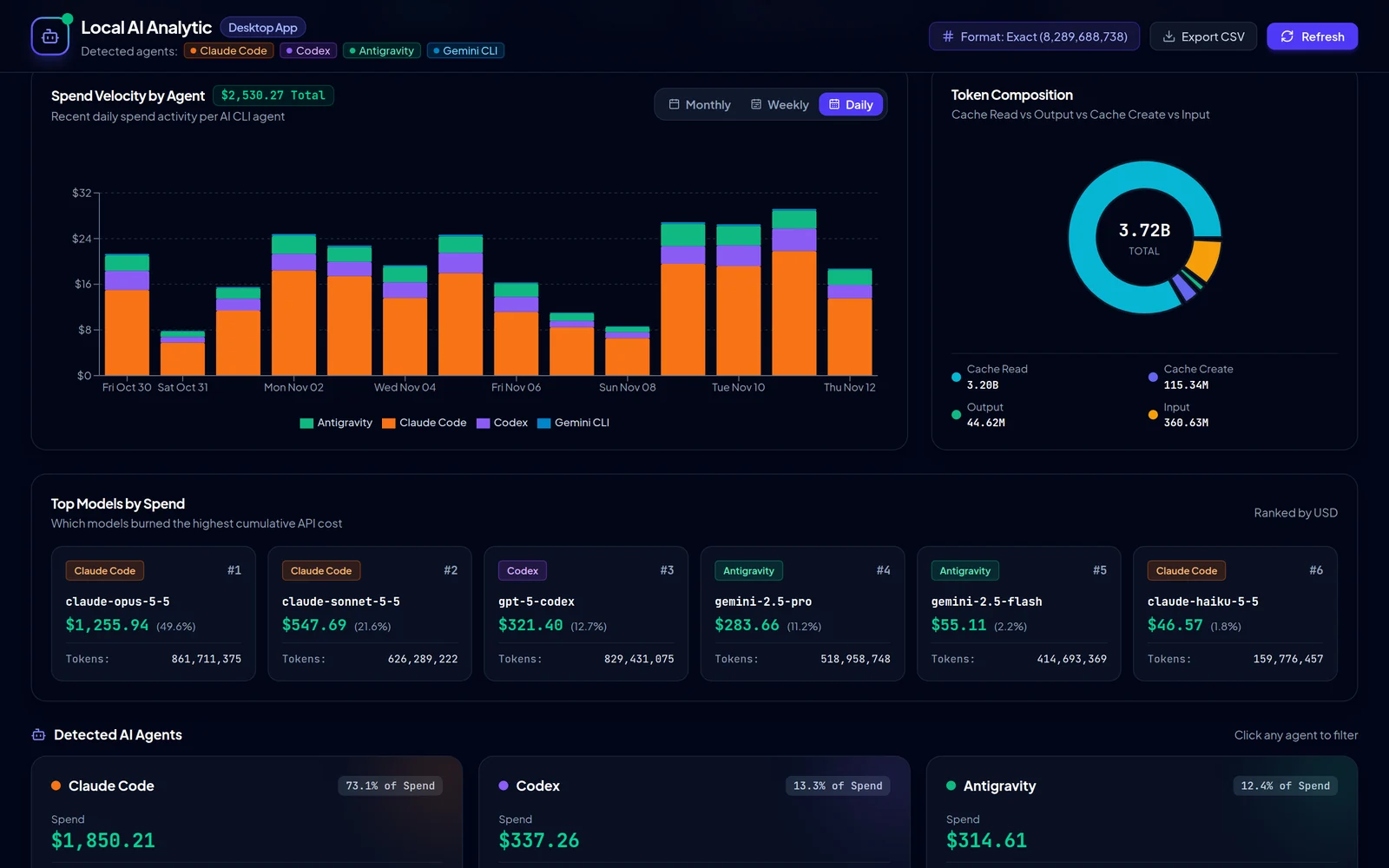
The same chart by day. -
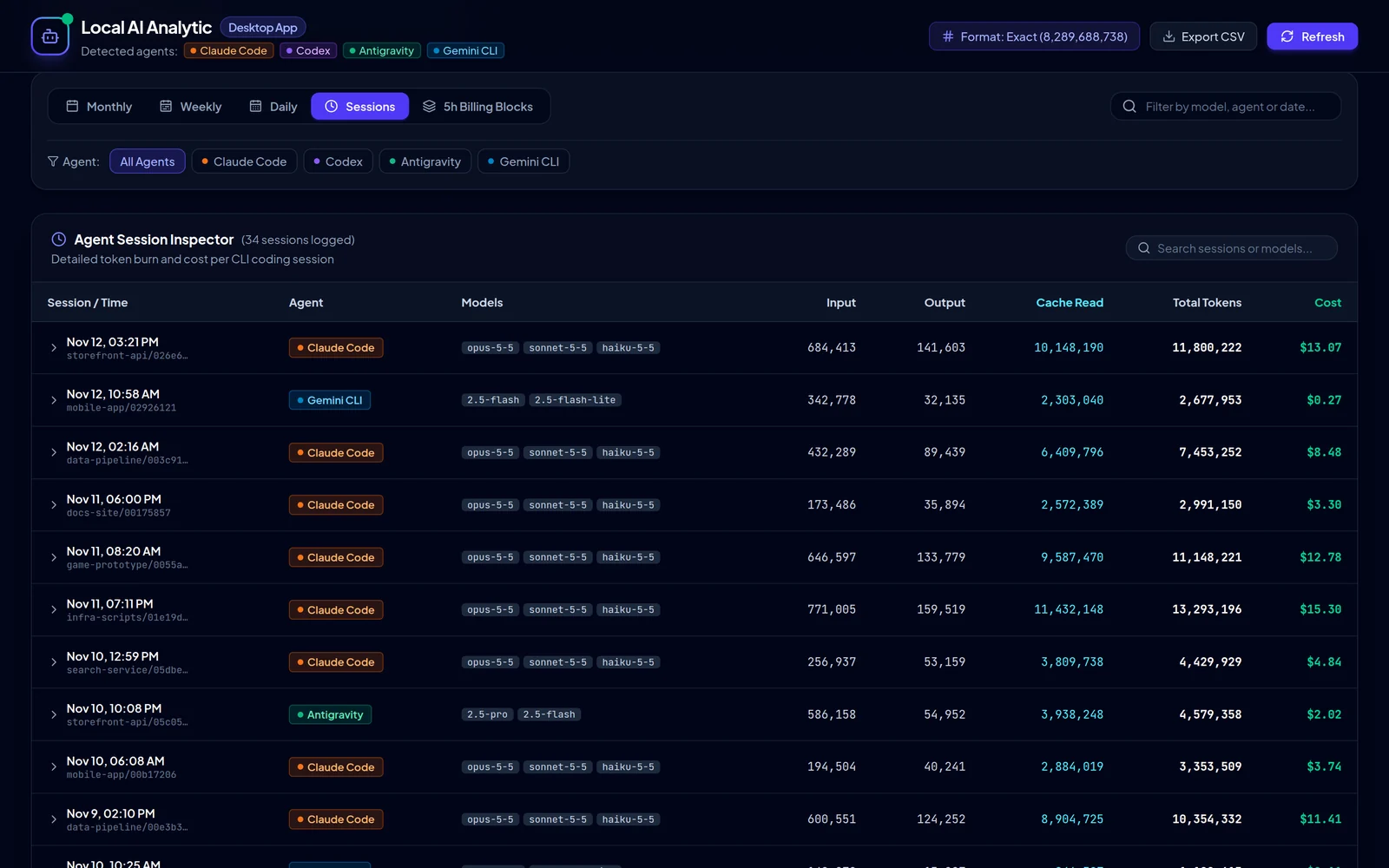
Sessions. One row per run, with its models and cost. -
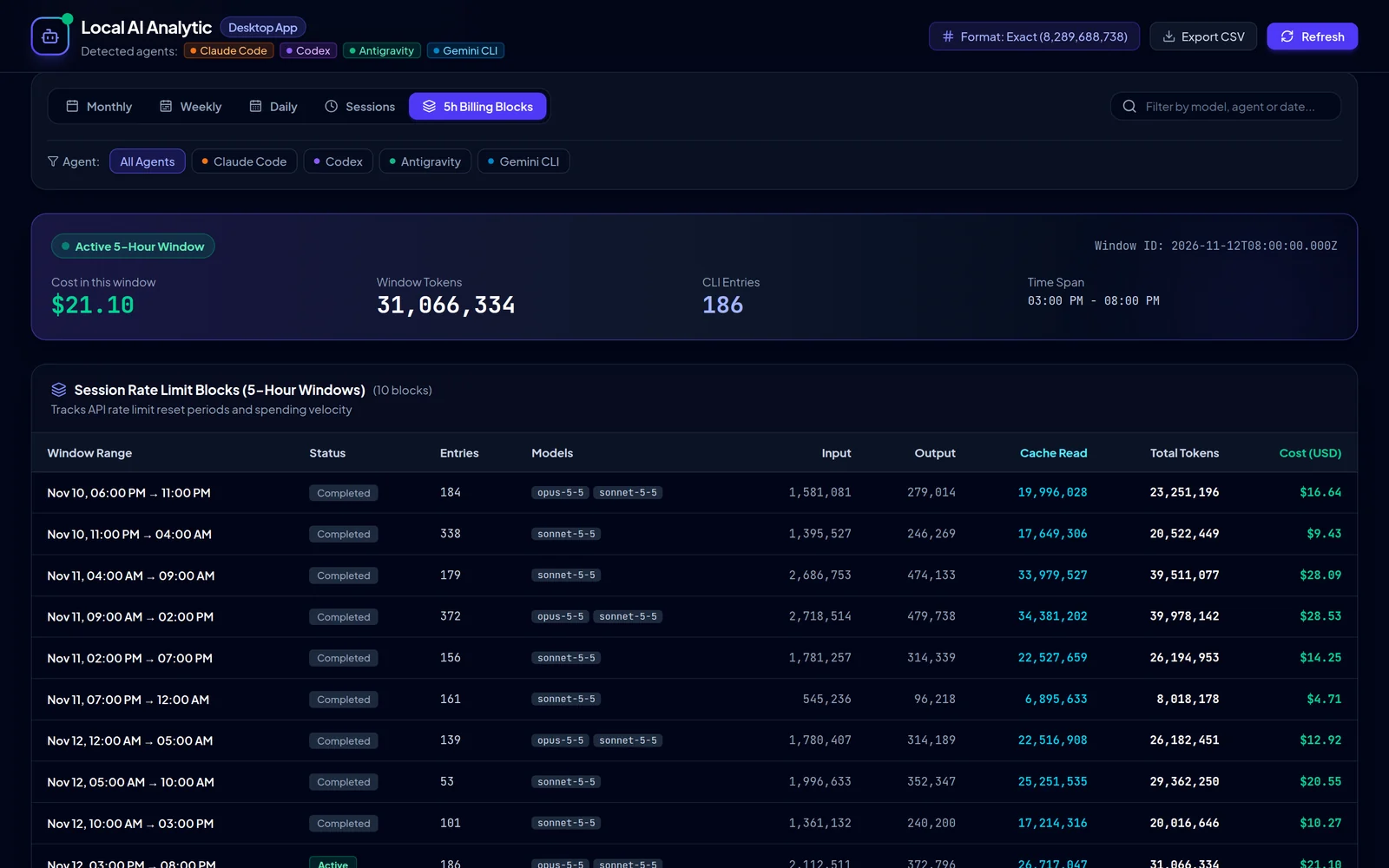
Billing blocks. The active five-hour window sits on top.
Screenshots use made-up sample data, not real usage.