AutoSeq
Build tap and swipe sequences, then run them on top of other apps.
- Platform
- Android
- Version
- 1.1.0
- Updated
- 4 Nov 2026
- Size
- 22.5 MB
Download
-
Android
Download
Debug build, version 1.1.0.
SHA-256 checksum
88ff97cbf353ef0d21d53124c9cb68d6973ce2fab6da449d6211523fe2d899aeCheck the file after downloading with
sha256sum autoseq-1.1.0-debug.apk.
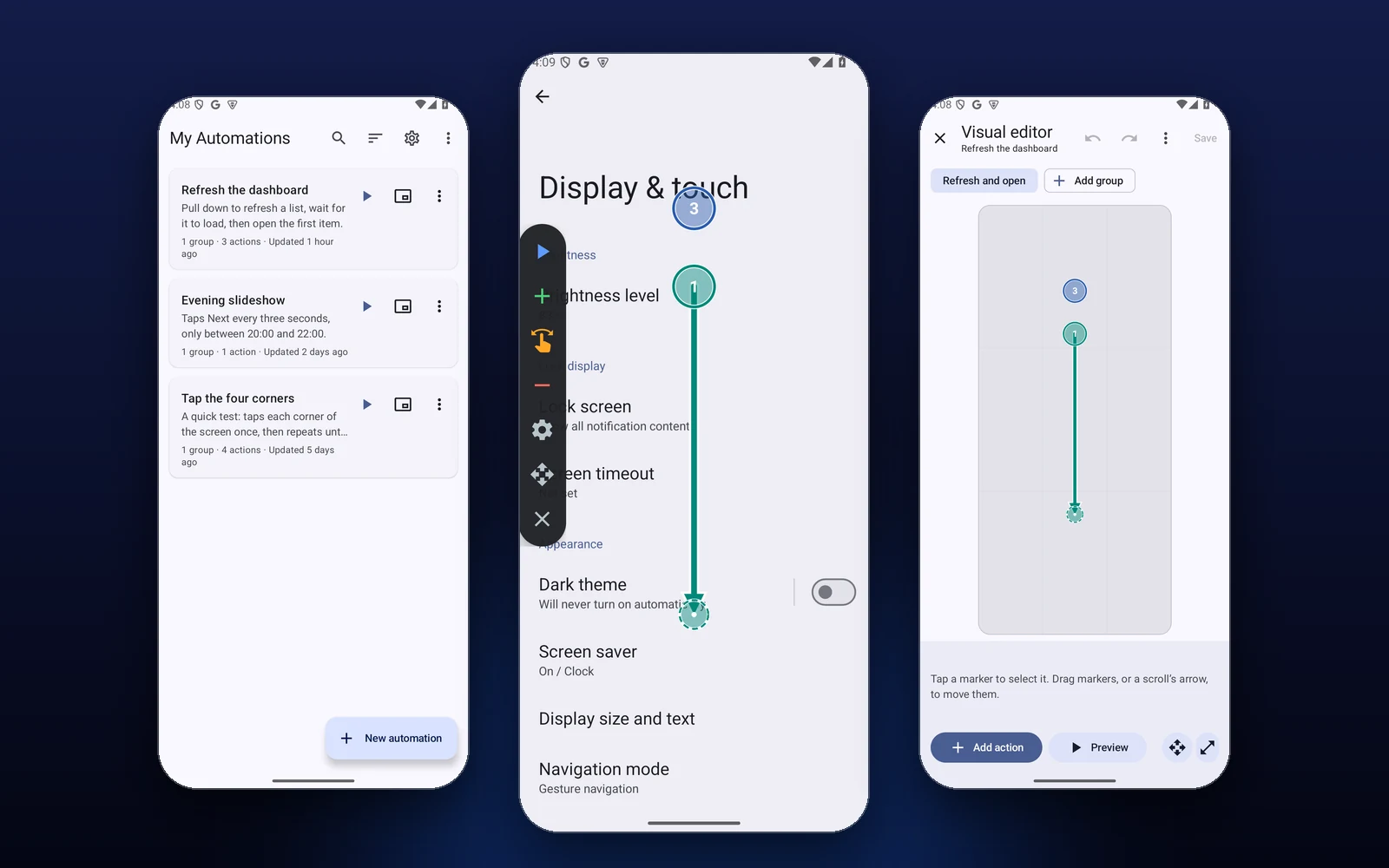
AutoSeq taps, long-presses and swipes for you, on top of other apps. You build a sequence of steps, choose when it runs, and start it from a small floating toolbar that sits over whatever app you are in.
Sequences are kept in groups. Groups can run one after another, for a set time, or only inside a daily time window. AutoSeq works through Android's accessibility service, which it uses only to perform gestures: it asks for no accessibility events and cannot read what is on your screen. The app has no internet permission, and its log never leaves the device.
What it does
- A floating toolbar over any app: add tap and swipe targets, drag them into place, then start and stop
- A visual editor with draggable, resizable markers, undo and redo, and a preview that animates the run without tapping anything
- Taps with a count and an interval, long presses, scrolls and waits, each with its own delays
- Groups that run a set number of times, for a set duration, or only inside a daily time window (it may cross midnight), one at a time or in parallel
- Pauses by itself when the screen is off, locked or rotated, and carries on afterwards
- Stops at once: the floating Stop button, Volume Up and Volume Down together, or the notification
- Import and export as JSON, for one automation or a full backup, through the system file picker
- Light, dark and dynamic-colour themes
Install
-
Download the APK on your phone, or copy it there from a computer.
-
Open it. If Android says it cannot install apps from this source, allow it for the browser or file manager you used, then open the file again.
-
Open AutoSeq, read the notice, tap Set up and turn on AutoSeq under Accessibility. If Android shows “Restricted setting”, open App info, tap the three-dot menu, choose “Allow restricted settings”, then try again.
-
Tap the small window icon on an automation to bring up the floating controls, then open the app you want to automate.
You need
- Android 8.0 or newer
- AutoSeq turned on under Accessibility; on Android 13 and newer, an app installed outside a store may first need “Allow restricted settings” in its App info
- Notifications are optional: they add Pause and Stop buttons to the running notification
Good to know
- This is a debug build, not a Play Store release.
- AutoSeq is a general-purpose tool. You are responsible for following the rules of the apps and services you use it with, and many do not allow automated input. It is not meant for getting around CAPTCHAs, sign-ins or other security checks, or for creating fake clicks, views, votes or engagement.
- If you force-stop AutoSeq, Android turns its accessibility service off. Turn it back on from the Setup screen.
Screenshots
-
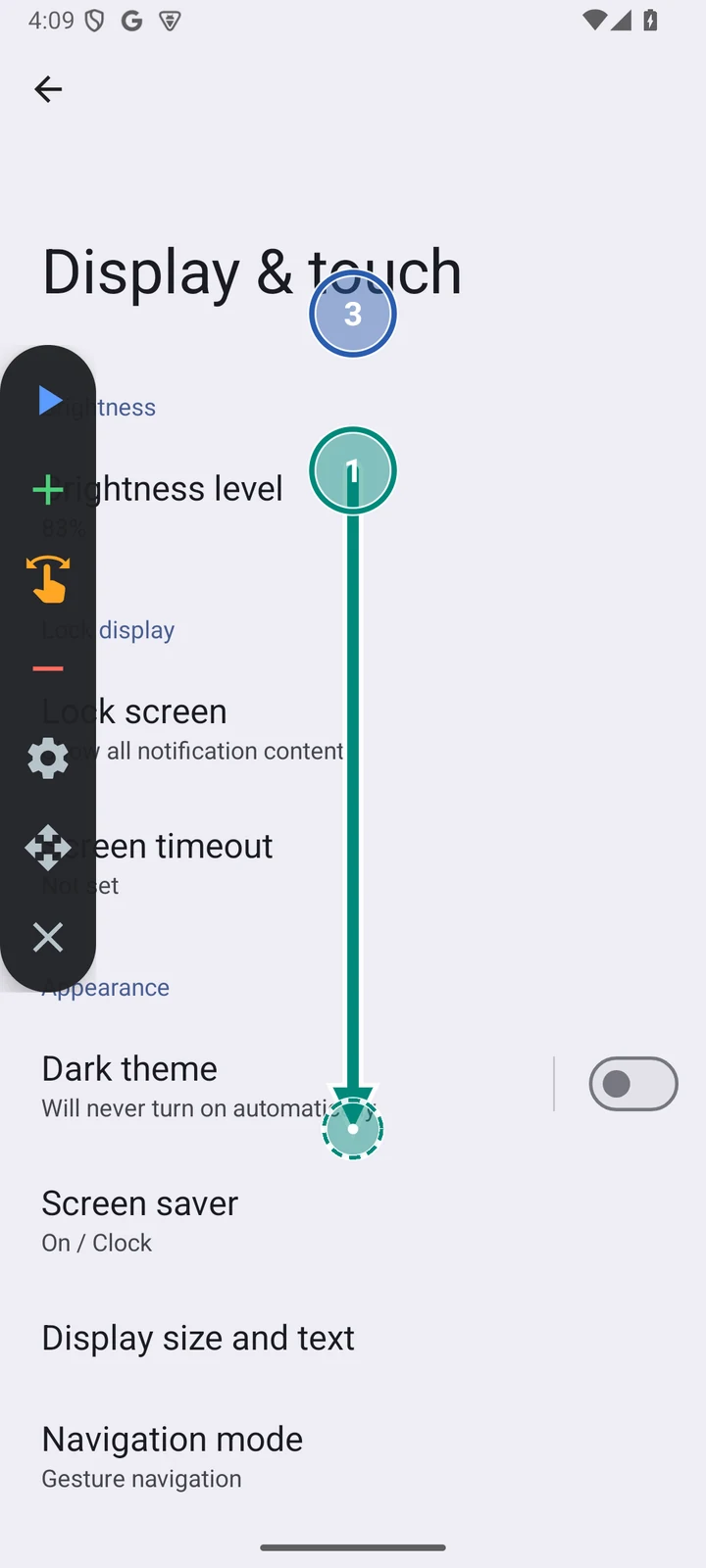
Floating controls, on top of another app. -
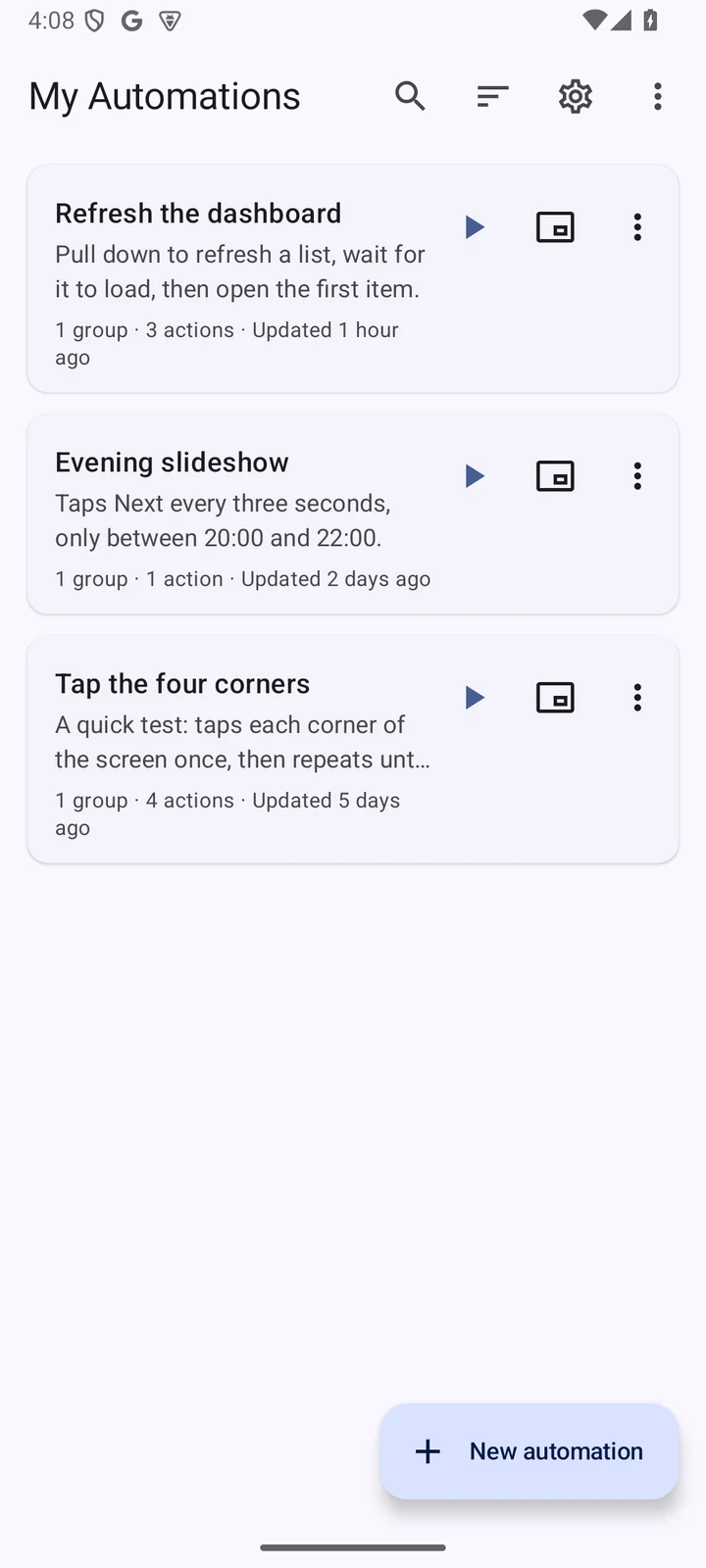
Home. Each automation has Start and floating-controls buttons. -
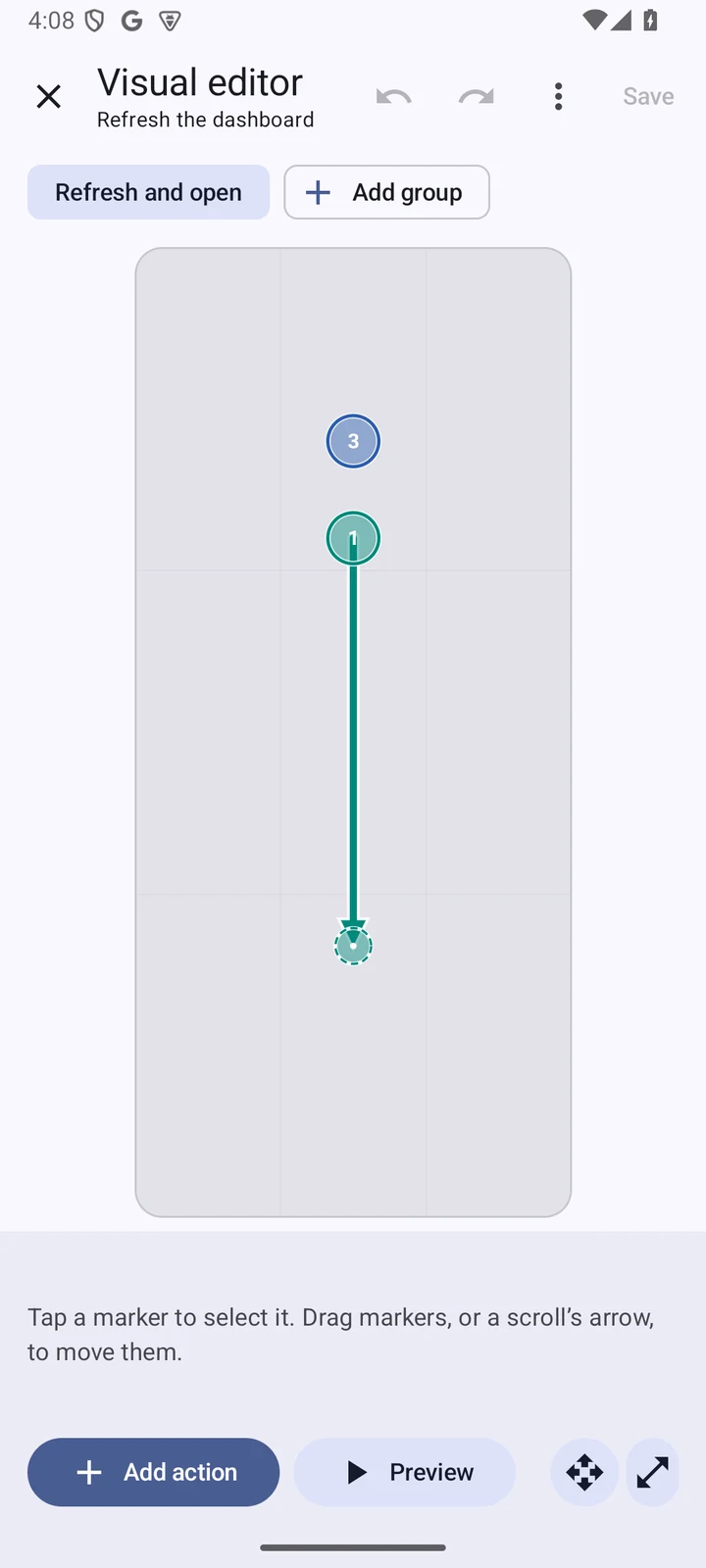
The visual editor. Drag the markers, or preview the run without tapping. -
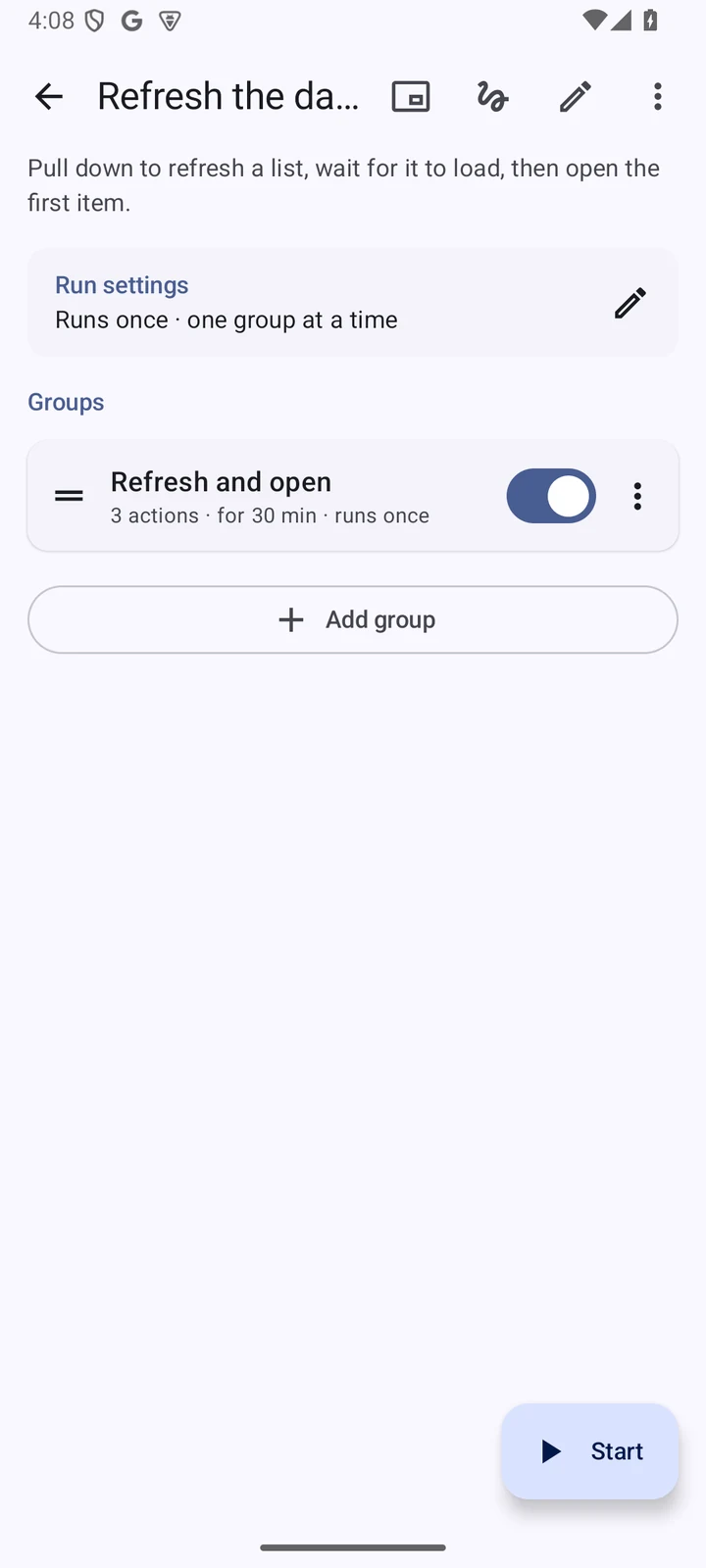
An automation: its run settings and its groups. -
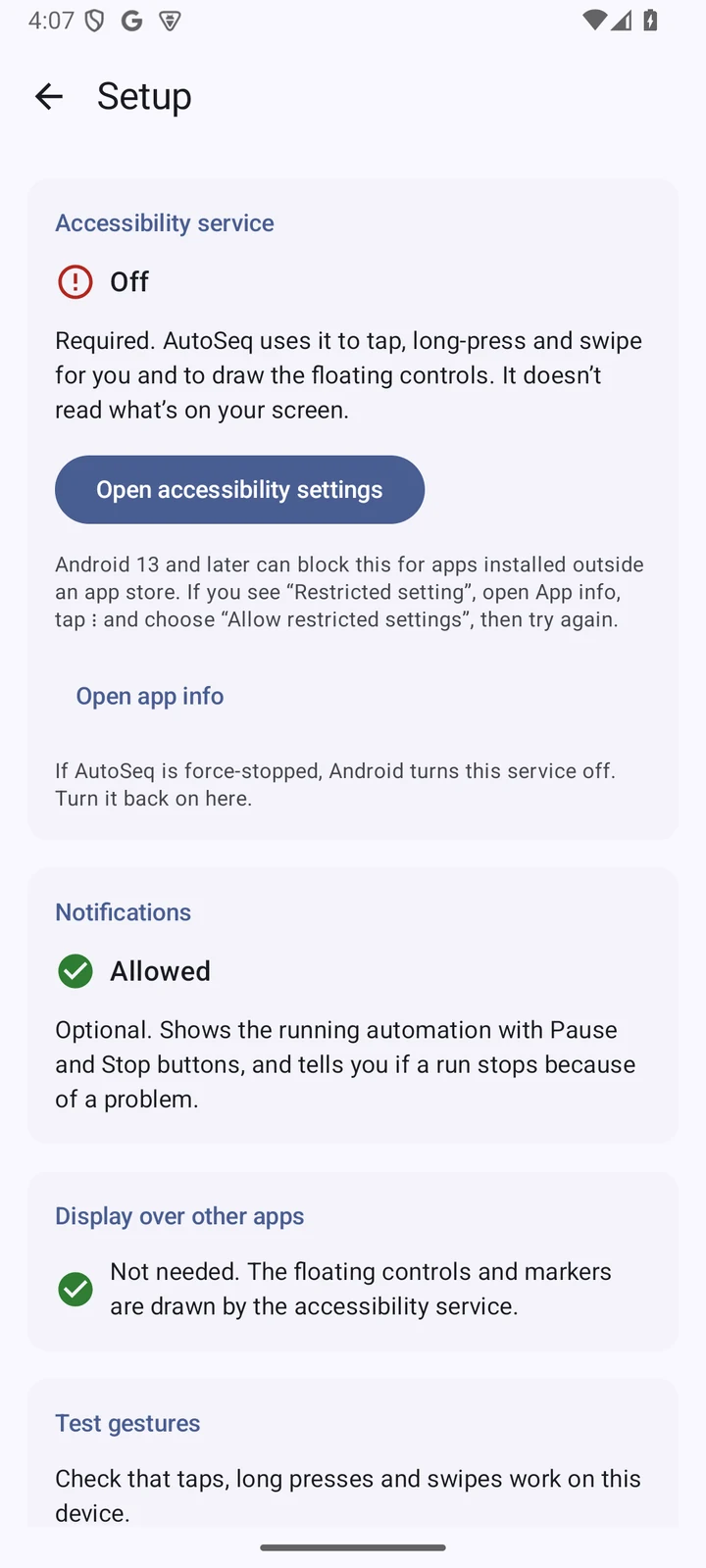
Setup. The accessibility service only performs gestures. -
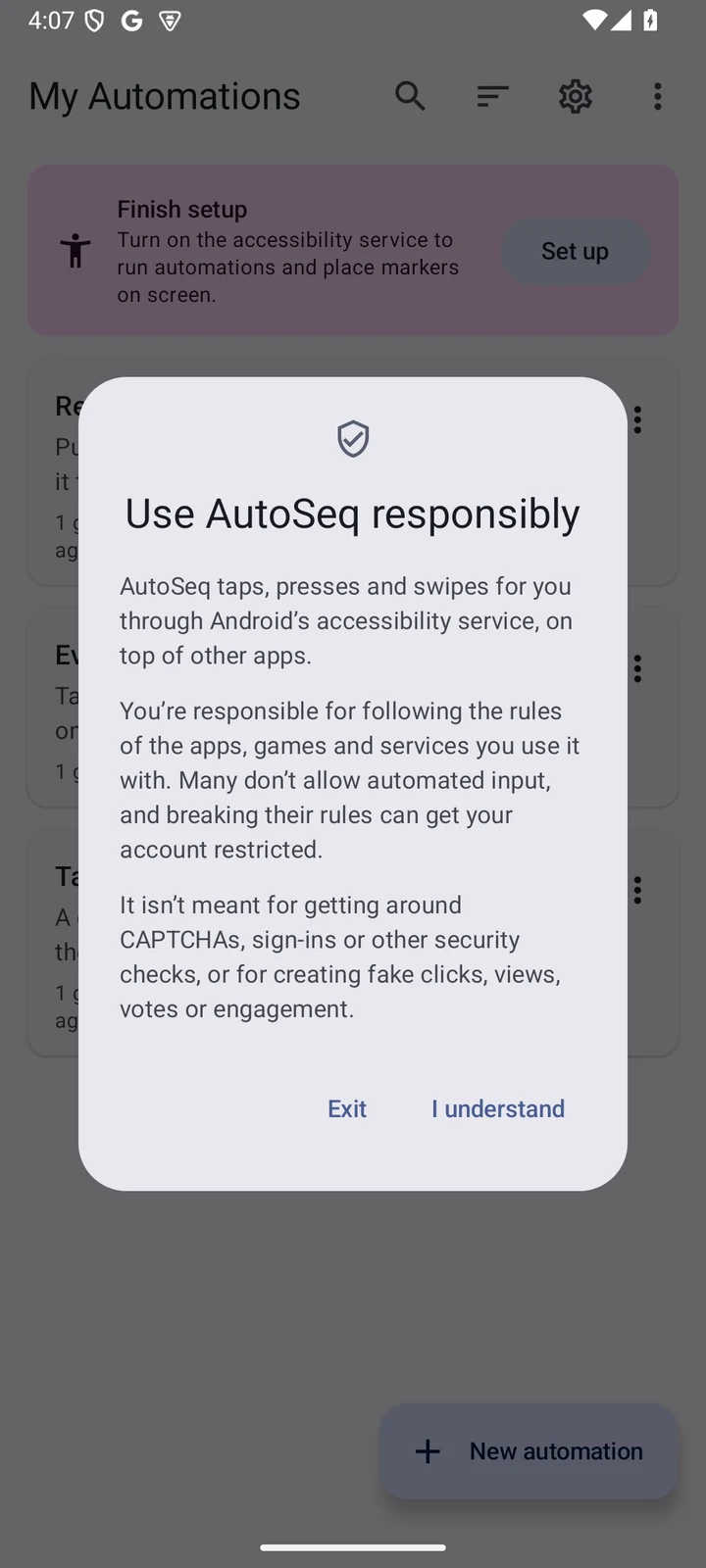
The notice shown on first launch.
Screenshots were taken on an Android 15 emulator, with made-up sample automations.